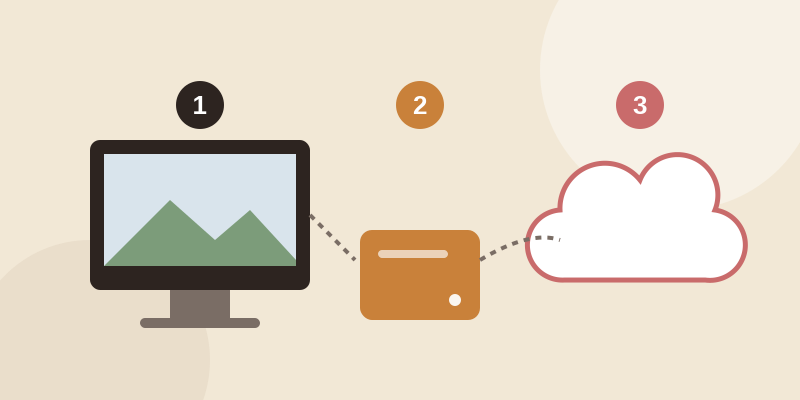
Today most of our memories are digital: phone photos, home videos, scanned family pictures and journals typed on a laptop. Digital files are easy to copy, but they are also easy to lose. A dropped phone, a failed hard drive, a forgotten password or a house fire can wipe out years of moments in a few seconds. A simple, steady backup plan is the best protection. This guide explains how to build one without becoming an IT expert.
Why a single copy is never enough
Every storage device eventually fails. Hard drives wear out, memory cards get corrupted, and phones are lost or stolen. Cloud accounts can also be locked if you lose access to the email address or second factor behind them. If your photos exist in only one place, you are one accident away from losing them. The goal of a backup plan is to make sure no single failure can take everything.
The 3-2-1 approach
A widely recommended rule of thumb is called 3-2-1:
- 3 copies of anything you care about: the original plus two backups.
- 2 different kinds of storage, for example your computer's internal drive and an external hard drive.
- 1 copy off-site, away from your home, such as a cloud backup service or a drive kept at a relative's house or at work.
The off-site copy protects against events that affect your whole home, such as fire, flood or theft, which would destroy a computer and an external drive sitting next to it.
Step 1: Gather everything into one main library
Before backing up, bring your memories together. Copy photos from old phones, memory cards, laptops and messaging apps into one main folder or photo library on a computer. Use a clear folder structure, for example one folder per year with sub-folders for events. Having one main library makes it much easier to back up everything and to notice if something is missing.
Step 2: Add a local backup
An external hard drive or SSD is an inexpensive second copy. Most operating systems include backup tools that can copy files automatically on a schedule, such as File History on Windows or Time Machine on macOS. Automatic backups matter because manual ones are easy to forget. Label the drive clearly and store it somewhere safe when it is not connected.
Step 3: Add an off-site copy
For most families the easiest off-site copy is a cloud photo or backup service. Check what happens when you delete a file. Some sync services delete the cloud copy too, which makes them weaker as a backup than services that keep deleted or older versions for a period of time. If you prefer not to use the cloud, a second external drive kept at another address and swapped every few months also works.
Step 4: Protect your accounts
A cloud backup is only useful if you can get into it. Use a strong, unique password, turn on two-step verification and save the recovery codes somewhere safe. Make sure the recovery email and phone number on the account are current. It is also worth looking at the legacy or inactive-account options many services offer, so a trusted person can reach your memories if something happens to you.
Step 5: Choose formats that will still open later
Common, open formats are the safest choice for the long term. JPEG and PNG for photos, MP4 for video, and PDF or plain text for documents can be opened by many programs. If you use a journaling app, check whether it can export your entries as text, PDF or another standard format, and make an export from time to time. Files locked inside one app depend on that app staying available.
Step 6: Test your backups
A backup you have never checked is only a hope. A few times a year, open a handful of random files from each backup copy and make sure they display correctly. Every few years, consider moving older backups to newer drives, because storage devices do not last forever and older connection types can become hard to use.
Step 7: Write down the plan
Write a short note that says where your main library lives, which drives and services hold the backups, and how to reach them. Store it with your important papers and tell a trusted family member where it is. Without that note, even a perfect backup can be hard for anyone else to find.
A simple checklist
- One main library with a clear folder structure
- An automatic local backup to an external drive
- An off-site copy in the cloud or at another address
- Strong passwords, two-step verification and saved recovery codes
- Regular test restores and a written plan
Setting this up takes an afternoon, and keeping it running takes a few minutes a month. In return, your photos, videos and journals have a much better chance of being there for you, and for your family, for many years.
General information only. SoRemember is an independent collection of articles, not an app or storage service.